
Using CAFE → Migration
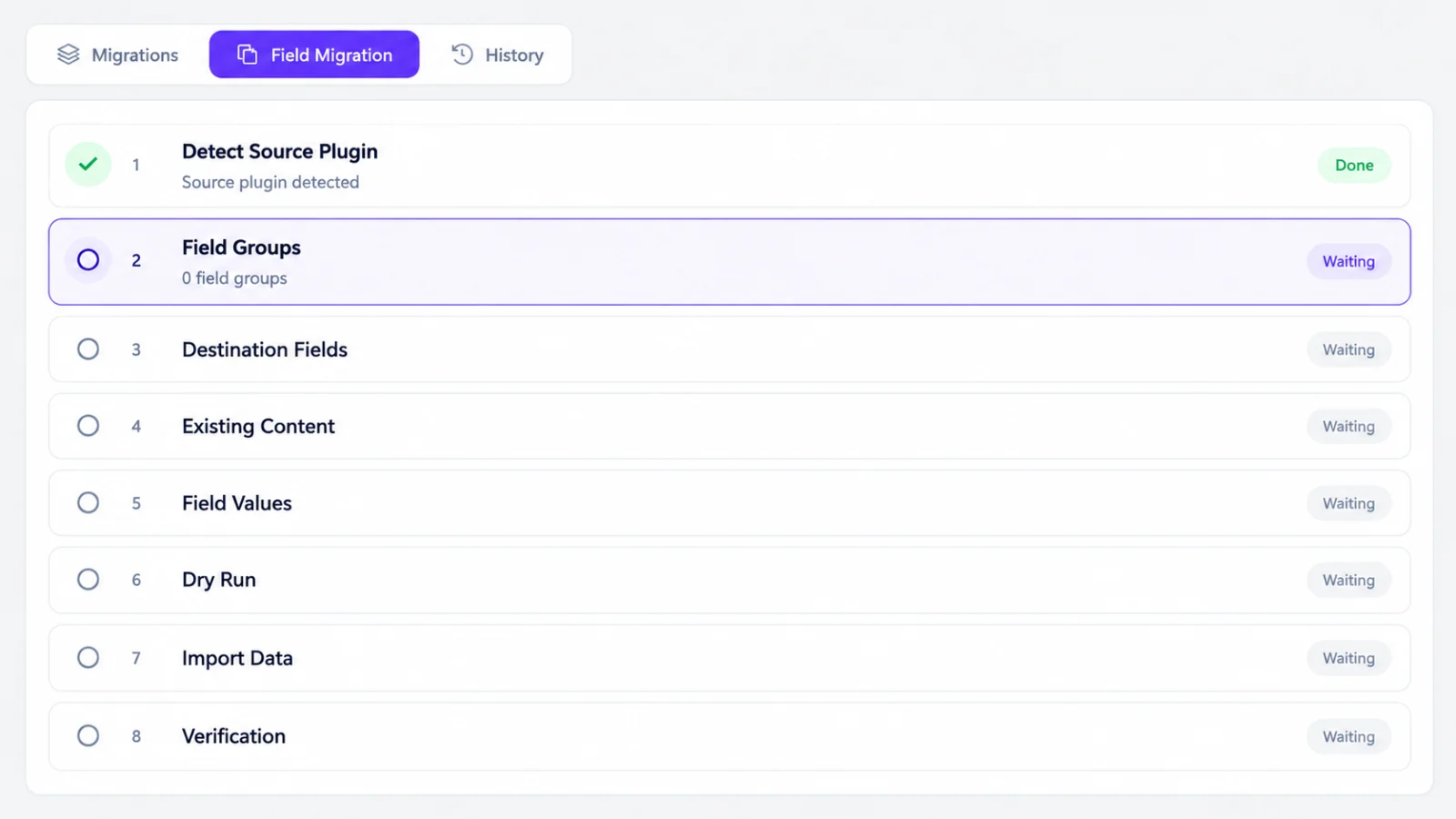
CAFE → Migration has three tabs: Migrations (the saved migrations and the editor), ACF → CAFE (converting this site from ACF in 11 steps, see ACF → CAFE) and History (every run). Only users who can manage CAFE (administrators by default) see it.
1. Where does the data come from?
-
Click New migration and give it a name, for example Properties from the old site.
-
Pick one of two options:
-
From ACF opens the ACF → CAFE tab: the guided conversion of this site in 11 steps (ACF → CAFE).
-
From other data, then choose under Where is the data?:
Choice Reads WordPress posts and custom fields Posts of one post type: title, content, other columns, post meta, terms Table of an old system A table another system left in this database, plus an optional second table for lists CSV file A spreadsheet saved as CSV (header row required) JSON file A list of records Your own Sources developers register (Custom sources)
Whatever the source, values are saved in CAFE's own tables: "Table of an old system" is where data comes from, never where CAFE keeps it. The source is only read.
-
-
Fill in the source's options (post type, table, file …) and click Read source. CAFE shows how many records and which fields it found.
The migrations the ACF → CAFE tab prepares ("ACF → CAFE: posts, pages and media" …) also appear in the list; opening one shows its ACF source here, with a field groups box.
2. Where does it go?
| Setting | Meaning |
|---|---|
| Import into | Posts (any post type), terms, users (existing only) or Settings Page values |
| Post type / Taxonomy | Which ones |
| Find existing objects by | The object imported earlier from the same record (default for external data), the record itself (WordPress and ACF sources: the post is the record), same slug, same e-mail, same username |
| What to do | Create and update · only create (existing are skipped) · only update (new are skipped) |
More options: status of new posts, the source key (the name imported objects remember their record under: other migrations use it to link to them), records per batch, and whether empty source values clear saved values (off by default: an import never removes data silently).
3. Map the fields
Each row maps a source field to a target:
- a WordPress field (Title, Content, Status, Featured image, Terms: Categories, with WPML Language and Translation of), or
- a CAFE field, listed per field group.
Suggest mapping fills in the obvious ones (same names, what the source suggests) without touching rows you made yourself.
Add transformations to a row when the value needs changing on the way: a number with a comma, a date in another format, "1" that should become "available", an old ID that should become the new post. They run in order. See Transformations.
When a source field is a list of rows (the team members of a property) and the target is a Collection, a column table appears: map each column to a sub-field.
A target mapped twice is marked red; the server refuses it too.
4. Check, then import
| Button | Does | Writes |
|---|---|---|
| Save | Stores the migration and checks it as a whole (fields exist, targets exist, transformations exist) | Only the migration settings |
| Preview | The first 10 records as they would be imported, with their problems; secret values shown as •••••• |
Nothing |
| Dry run | Every record, in batches, exactly like an import | Nothing |
| Import | Every record, in batches | Yes, and it can be rolled back |
While a run is going you see a progress bar and the counts (created / updated / skipped
/ invalid / warnings / written). Closing the page pauses it: open the run from
History, or continue with wp cafe migration resume <run-id>.
Invalid records are not written, and the other records continue. The problem list says which record, which field, and what is wrong; Download report (CSV) saves it.
History and rollback
History lists every run: migration, start, dry run or import, status, records, invalid records, CAFE version and the mapping version (a short hash that changes when the mapping changes). Report opens the run.
Roll back (imports only, the latest import of a migration) deletes the posts and terms the run created and puts back the fields it changed. See Runs for what it can and cannot undo.