
Admin Guide
Build custom fields in wp-admin without code: create a field group, add fields,
choose where the group appears, and editors see the fields when they edit that
content. Show the values in your theme with cafe_get_field().
Only users who can manage CAFE (administrators by default, see Security) see the CAFE menu.
1. Create a field group
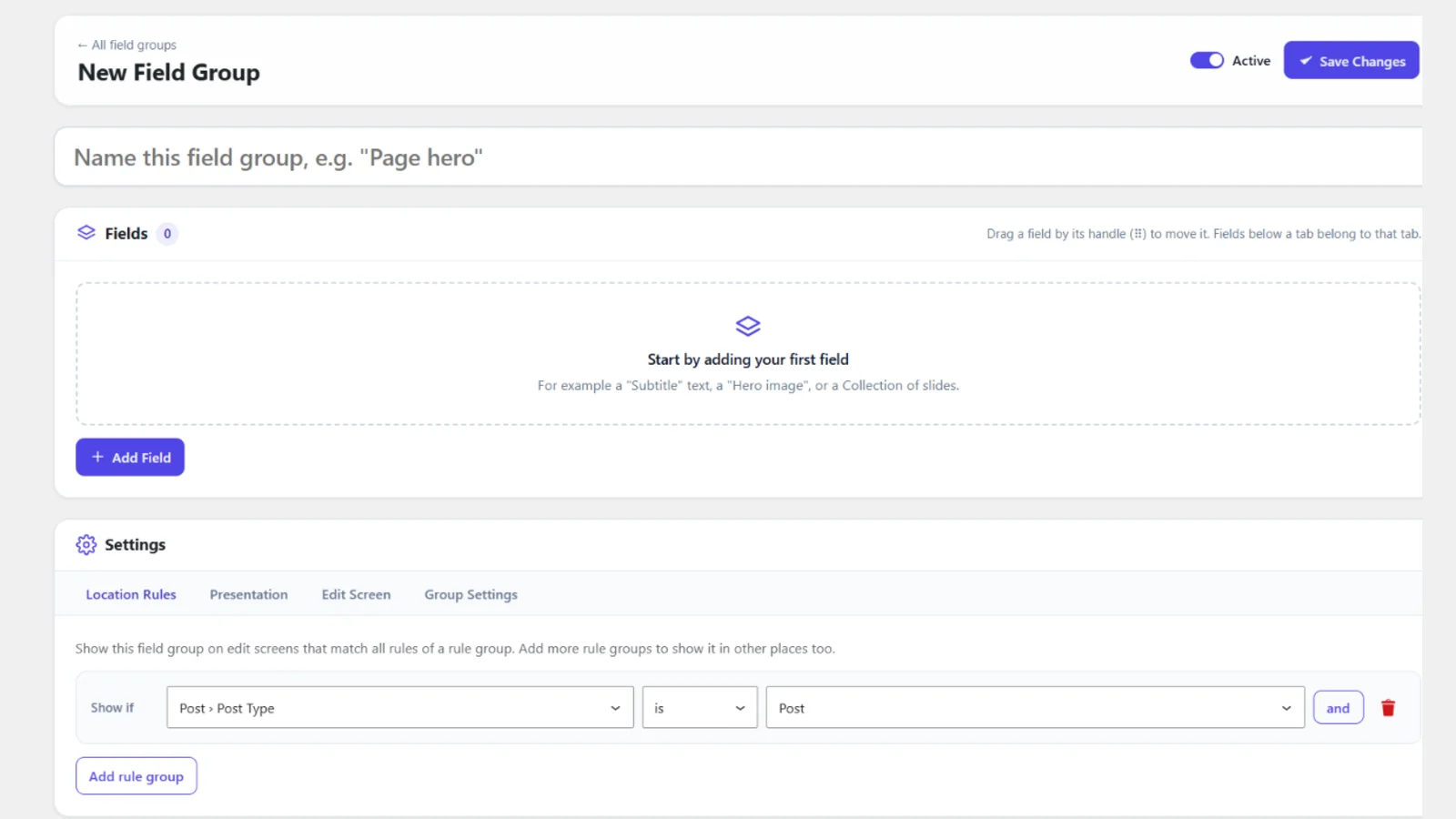
- Go to CAFE → Add New.
- Type a title, for example "Page hero". Editors see it as the box title.
- Click + Add Field.
2. Add fields
Each field opens with four tabs:
| Tab | What you set |
|---|---|
| General | Field Type, Field Label, Field Name, and type options such as choices, default value, return format |
| Validation | Required, and limits such as minimum/maximum length, number range, dates, allowed file types |
| Presentation | Instructions, placeholder, prepend/append text, rows, layout, image preview size, Width |
| Translation | Only with WPML: how the value behaves in other languages, and the label per language |
| Theme code | Ready-to-paste, escaped PHP that shows the field in your theme, and the field key |
-
Width places fields side by side on edit screens: two fields at 1/2 give a 50/50 row, 1/4 + 3/4 a 25/75 row, three at 1/3 a row of three. A field that no longer fits starts a new row; phones always show full width. Width is the field's own width: on a Collection or Field Set it sizes the whole box, not its sub-fields.
-
Layout of a Field Set, Collection or Section: Block stacks the sub-fields (each using its own Width), Table puts them side by side in one row like table columns, equal shares unless a sub-field has a Width, and Row shows labels on the left. To get a Collection's three sub-fields next to each other, set its Layout to Table and its Width to Full; a Collection at 1/3 fits its three columns into a third.
-
Tabs work like dividers: add a Tab, then the fields below it (up to the next Tab) show in that tab. In the list they are indented under the tab. Choose horizontal or vertical tabs and the tab that opens first on the first tab's Presentation tab.
-
Add a field to a tab: the + on the tab's row adds a new field at the end of that tab. The big Add field button adds at the very end of the list.
-
Fold tabs: click a tab's "8 fields below" badge to hide or show its fields. Tabs start folded when you open a group; a tab opens by itself when one of its fields is being edited or has an error.
-
The Field Name fills in from the label ("Hero Title" →
hero_title). You can change it; use letters, digits and underscores. -
Drag fields by the ⠿ handle to reorder them or move them into another tab or Collection.
-
Duplicate copies a field with all its settings; Delete removes it (and its saved values) when you save the group.
Images and files
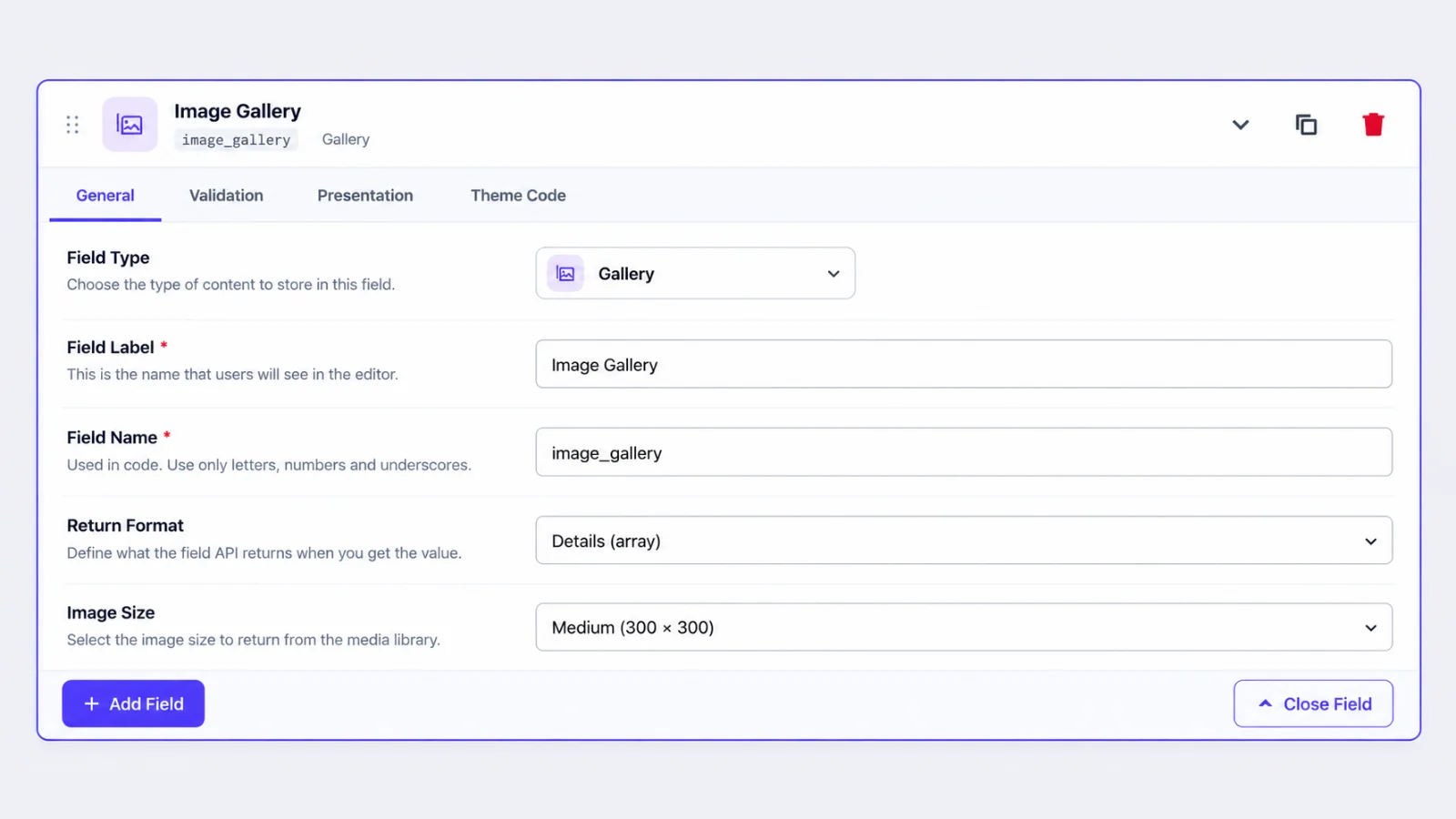
- Image fields only accept images. Pick formats (JPG, PNG, WebP, …) in Validation → Allowed File Types.
- File fields accept any upload WordPress allows. To limit them to, for example, PDF, Word and Excel, open Validation → Allowed File Types → Choose… and tick the types. The dropdown also takes any other MIME type.
- Presentation → Preview Size sets how large the chosen image appears to editors
(Thumbnail 150 × 150, Medium 300 × 300, …). It does not change what
cafe_get_field()returns: that is General → Image Size. - General → Default Image / Default File is picked from the media library.
3. Choose where the group appears
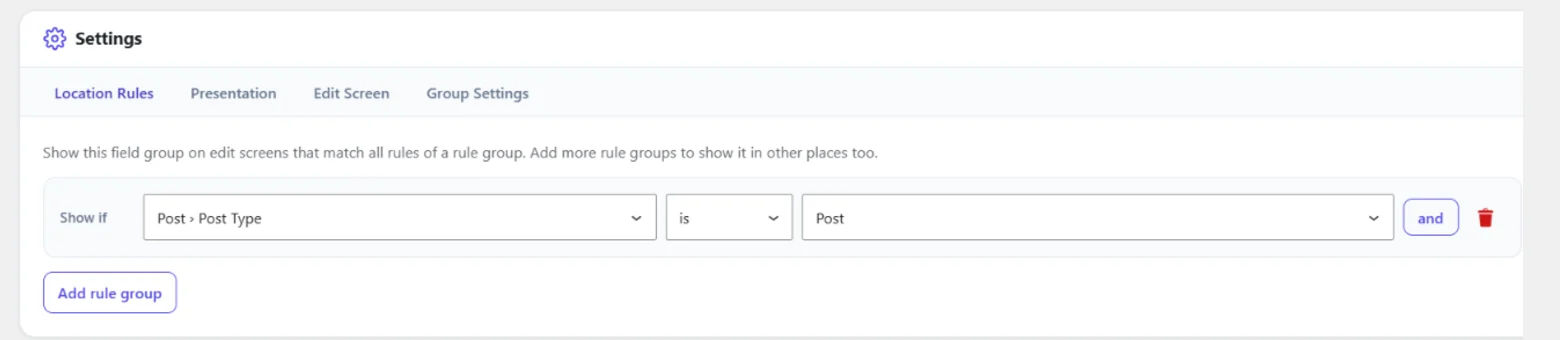
The Settings box below the fields has four tabs:
- Location Rules: "Show if Post Type is Page". Rules in one row group must all match (and); add another rule group to show the fields in other places too (or). See Location Rules.
- Presentation: position (below the content or in the sidebar), label placement (top or left of the input), instruction placement (below labels or below fields), and order among other groups.
- Edit Screen: which standard WordPress parts editors see next to the fields on post, page and custom post type screens. Parts are grouped by where they sit (main area, sidebar, discussion & extras); click a tile to switch it between Shown and Hidden. Hidden parts keep what is saved in them. The setting applies wherever the group's Location Rules show it (AND within a row, OR between rows); when several groups are shown on one post, a part is hidden if any of them hides it. See Edit screen.
- Group Settings: a description (shown in the field group list), the Show description on edit screens switch (off by default; on = editors see the description at the top of the box), and the group key.
4. Save
Click Save Changes. CAFE checks the group first. The title, labels and names must be filled in, names must be unique, and settings must be valid (a minimum cannot be larger than its maximum, for example). Problems are marked in red on the field and the tab that holds them. Fix them and save again.
5. Edit content
Open a post, page or term that matches the location rules. The group appears as a box with your fields. Values are validated when the post is saved; invalid values are not saved and are listed at the top of the screen and next to the field.
6. Manage field groups
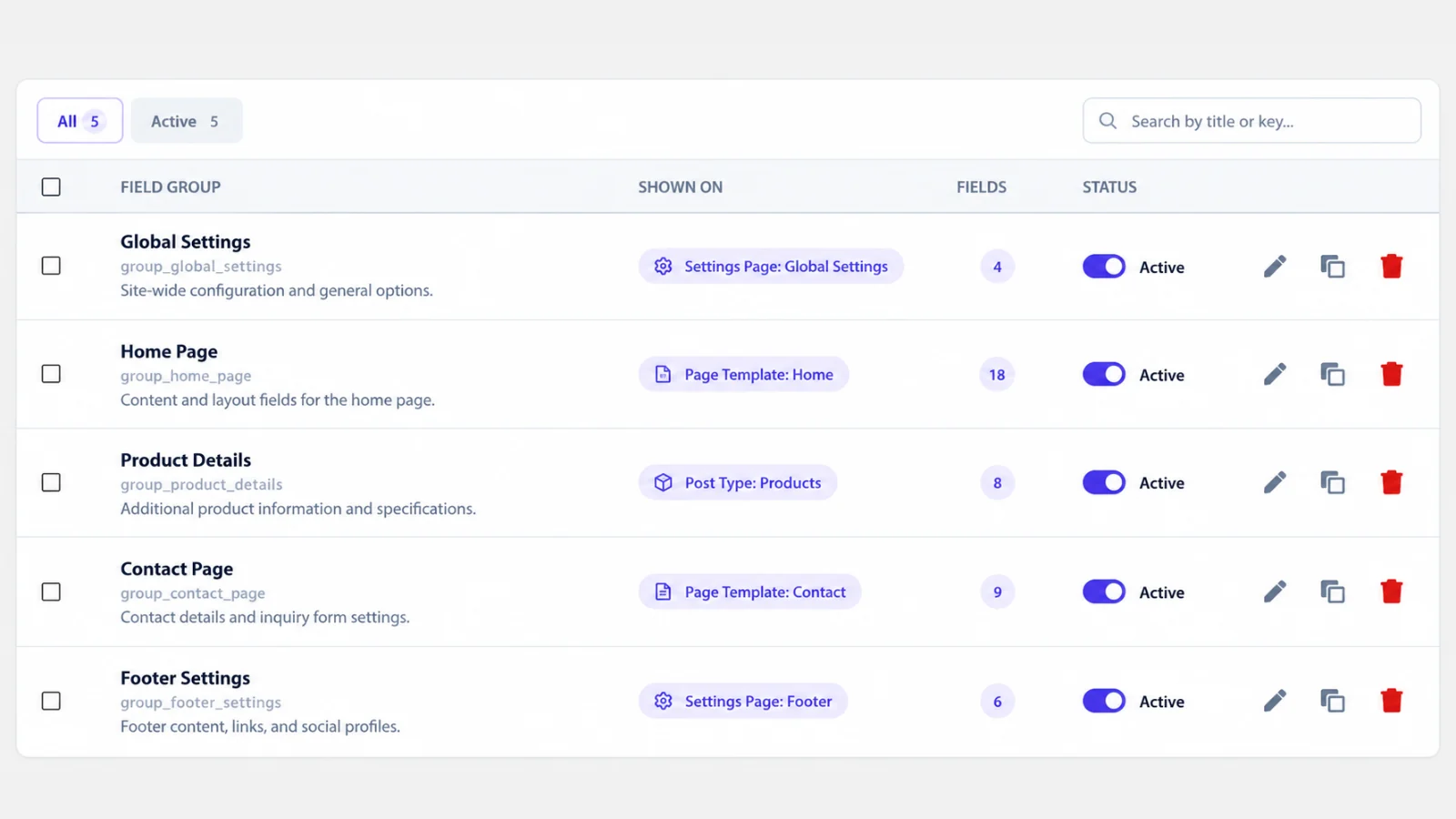
CAFE → Field Groups lists every group with its location, number of fields, key and status.
| Action | Result |
|---|---|
| Deactivate | Editors no longer see the fields. Values stay readable in code. |
| Trash | The group is hidden everywhere (edit screens and cafe_get_field()), but its fields and values are kept. Undo or Restore brings it back with its previous status. |
| Delete Permanently (in the Trash) | Deletes the group, its fields and all their saved values. This cannot be undone. |
| Duplicate | Creates an inactive copy with new keys. |
Use the checkboxes and Bulk actions to act on many groups at once, and the search box to find a group by title or key.
7. Settings Pages
CAFE → Settings Pages creates site-wide screens such as "Contact Settings" or
"Footer". Click New Settings Page, choose where it appears in the menu (the
preview shows it live) and who can edit it. Then click + Field Group on its
card: the new group is already placed on that page. Your theme reads the values
with cafe_get_option(). Full guide: Settings Pages.
8. Tools: import and export
CAFE → Tools exports field groups to a JSON file and imports them on another site. Only definitions travel, never content. Choose a file, pick Add and update, Only add new or Only update existing, click Check file to see exactly what would change, then Import now. Guide: Tools.
Settings
Compatibility lists the plugins CAFE works with that are installed on this site: WPML, Elementor (with Elementor Pro) and Gravity Forms. For each it shows a status, the version (and add-ons such as WPML String Translation), the version CAFE was tested with, the oldest version CAFE supports, what CAFE adds to that plugin, and a link to the plugin's own screen.
| Status | Meaning |
|---|---|
| Active | The plugin runs and CAFE's integration is on |
| Needs setup | WPML runs but its setup wizard is not finished |
| Update needed | The plugin is older than CAFE supports; the integration stays off until you update |
| Not activated | Installed, but not activated on the Plugins screen |
The installed version has a color too:
| Color | Label | Meaning |
|---|---|---|
| Green | Up to date | The version CAFE was tested with, or newer |
| Yellow | Older version | Older than the tested version, but still supported. Updating is recommended |
| Red | Too old | Older than CAFE supports. The integration is off until you update (the status says "Update needed") |
| Plugin | Tested with | Supported from |
|---|---|---|
| WPML | 5.0.2 | no lower limit |
| Elementor | 3.33.0 | 3.5.0 |
| Gravity Forms | 3.1.2 | 2.9.0 |
Plugins that are not installed are not listed. More about each integration: WPML, Elementor, Gravity Forms.
Integrations → Google Maps API key (optional) lets editors pick places for Google Map fields on a map. Without it they type the address and coordinates.
Appearance sets the accent color, field and sub-field backgrounds, corners and spacing of every CAFE screen and field box, and whether field boxes have a line in the accent color along the top (Top line: Show or Hide). Under the tab settings, Add buttons sets the colors of the "Add Item" and "Add Section" buttons (normal and hover; Automatic keeps the accent outline). See Styling.
Delete data on uninstall removes every CAFE table, value and Settings Page when the plugin is deleted. It is off by default, so uninstalling keeps your data.